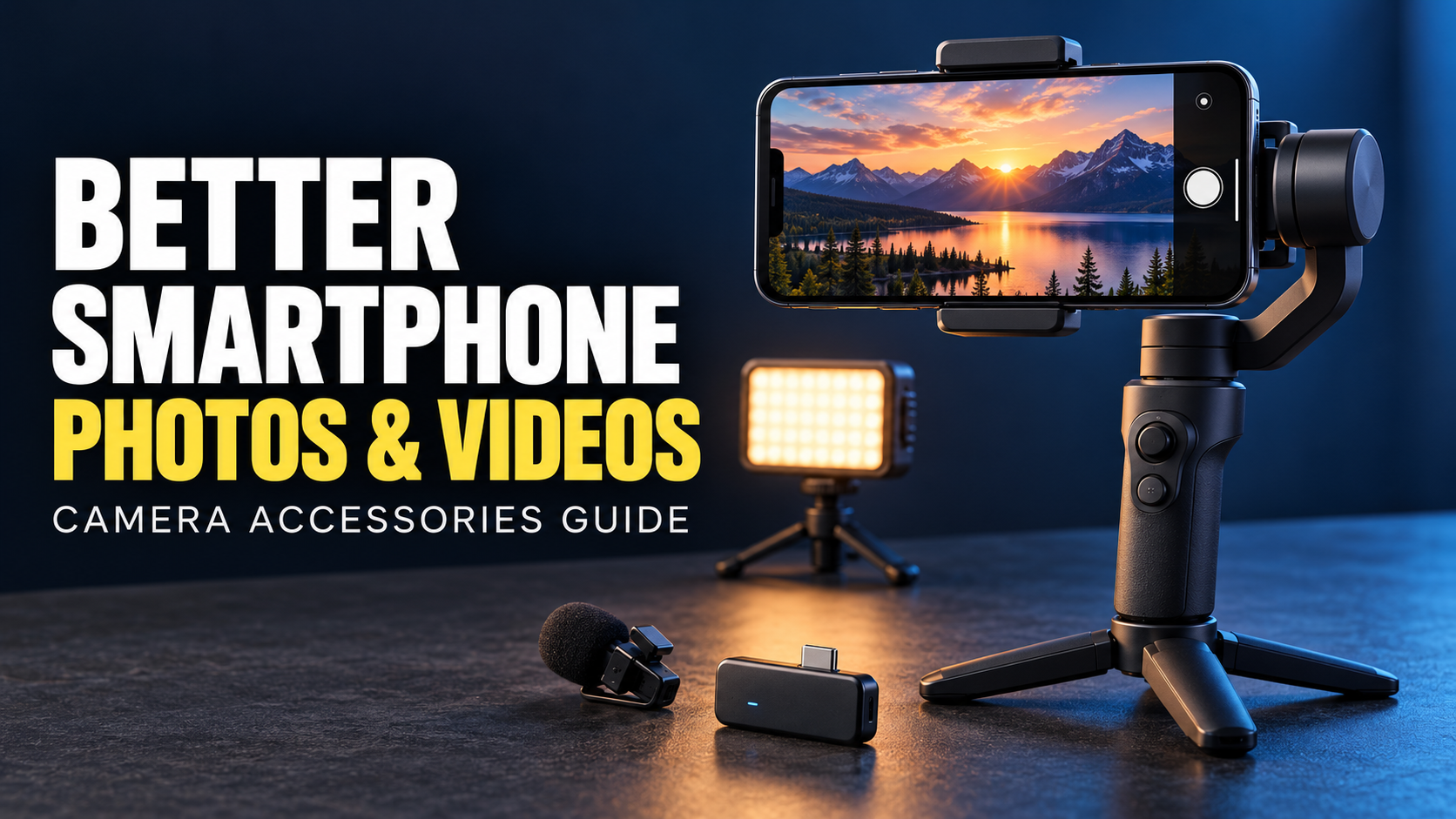
The difference between an ordinary smartphone clip and a polished one often appears in small details: a steady frame, a clearly recorded voice, and light that helps the subject stand out. Camera accessories can make those details easier to control, especially when you are filming alone.
A useful setup begins with the work you actually want to create. Someone photographing handmade jewellery needs different tools from someone recording walking tours. Before assembling a collection of gadgets, decide what should improve in your next photo or video. That decision gives every purchase a clear purpose.
Start With the Scene and Available Light
Choose your subject, tidy the background, and examine how light falls across the scene. For a product photograph, try placing the item beside a window and turning it gradually. Watch how the position changes reflections and reveals texture. For a presenter, check whether a bright window behind them is distracting attention from their face.
Explore the controls already available in your camera app. On iPhone, for example, Apple explains how to tap to set the focus area, adjust exposure, and hold the focus area to lock focus and exposure.
Take a sample before adding equipment. Look at the actual saved image, including its edges. A cleaner background or a different camera position may solve the problem immediately. This first assessment also tells you what an accessory needs to contribute.
Keep Framing Consistent With a Tripod
A tripod gives the phone a repeatable position. That is helpful when recording recipes, demonstrating an app, taking product photographs, or appearing in your own tutorial. You can concentrate on what happens inside the frame without holding the camera throughout the session.
Pay close attention to the phone mount. Check its stated size range, whether it grips your phone securely with the case fitted, and whether the clamp presses a side button. Try both portrait and landscape positions before recording. Leave room around the charging port if a microphone or cable will be connected.
Choose a stable surface and extend the legs only as far as necessary. For a desk demonstration, mark the tripod position so you can reproduce the same framing when filming another section the following day.
Add a Gimbal When the Camera Must Move
A motorized gimbal helps control the phone’s orientation during camera movement. It becomes useful when the shot involves walking alongside a subject, moving through a room, or revealing a product with a deliberate sweep. DJI’s smartphone gimbal documentation also shows why compatibility matters: supported phone dimensions and weight vary, and attached lenses can affect balance.
Before purchasing, check the manufacturer’s list for your exact phone and investigate which features work in your preferred recording app. Follow the mounting instructions for that particular gimbal.
Rehearse the movement before recording. Pick a starting frame, an ending frame, and a reason to travel between them. Move at a controlled pace and leave a short pause at each end for editing. A cooking introduction filmed from one fixed position may simply call for the tripod you already own.
Make Speech Clear With an External Microphone
For spoken videos, consider where the microphone will sit relative to the speaker. A clip microphone suits a presenter who needs both hands, while a wireless system can provide freedom to move around the scene. Check placement during normal gestures so clothing does not brush against the microphone.
Confirm the complete connection before buying. RØDE explains that microphones may connect through USB-C or Lightning, or through an appropriate interface or adapter for a 3.5 mm output. TRS and TRRS connections also need to be matched correctly.
Software compatibility matters too. RØDE documents an example where Motorola’s default camera app may not accept its USB or wireless microphone input, requiring a compatible alternative.
Record a short spoken test in the actual filming app, then listen through headphones. Check that the intended microphone captured your voice. Repeat the test after changing cables, apps, or recording settings.
Shape Your Lighting With a Small LED
An adjustable LED light can help you create a repeatable arrangement when daylight is unavailable or changes during filming. Start with one light and study its effect before adding another.
Position it slightly above the subject and to one side of the camera, then adjust by looking at the recorded result. Try the diffuser supplied or recommended for the light to make shadows less abrupt. For shiny products, change the light’s angle until reflections reveal the shape without hiding labels or details.
If the room contains several different light colours, simplify the arrangement and aim for consistency. Film a white object and a familiar coloured item as a visual reference. Choose brightness, mounting options, and convenient power arrangements according to your space and the length of your recording sessions.
Test Lenses Before Building a Collection
An external lens should serve a particular photograph or shot. Perhaps you want to explore close details in jewellery, or create a noticeably wider perspective for an interior. First, try the camera options already built into your phone and decide what is missing.
Check the lens maker’s compatibility information for your exact handset, its camera arrangement, and the required case or mount. Ask which camera the accessory is designed to cover. A lens that attaches physically still deserves a careful image check.
Photograph a detailed subject with and without the attachment under similar conditions. Examine centre detail, corners, reflections, and dark edges. Judge the result at the size you intend to publish. If using a gimbal, include the lens in your compatibility assessment because its additional weight can affect balance.
Prepare the Whole Recording Workflow
Write a short shot list before setting up: an opening view, the main explanation, useful close details, and a closing action. For a product demonstration, this might mean showing the package, the connection process, the product in use, and its storage arrangement. Decide the intended screen orientation before filming.
Charge the phone and any powered accessories. Check available storage and make a test clip using the settings you plan to keep. Confirm that the clip saves, plays correctly, and reaches your editing app with working sound.
Build small pauses into each take so you have room to trim. After filming, copy important footage to a second location and open several copied files before deleting anything from the phone. Keep related clips together with useful names, making the later edit easier to navigate.
Build a Kit Around Your Next Project
Set your budget around the problem that interrupts your work most often. If framing keeps changing during tutorials, begin with a dependable tripod and mount. If viewers struggle to hear your explanation, investigate the microphone setup. If your filming corner becomes unusable after sunset, work on lighting.
Allow for supporting items such as the correct cable, mounting adapter, or carrying pouch. Compare complete working setups, including the pieces required to connect everything, before deciding what fits your budget.
Use each addition for several actual projects before expanding the kit. Keep notes about setup time, mistakes, and which accessories you repeatedly leave in the bag. Those observations provide a practical buying guide of your own. Your next upgrade can then address a demonstrated limitation while preserving a setup you enjoy using.