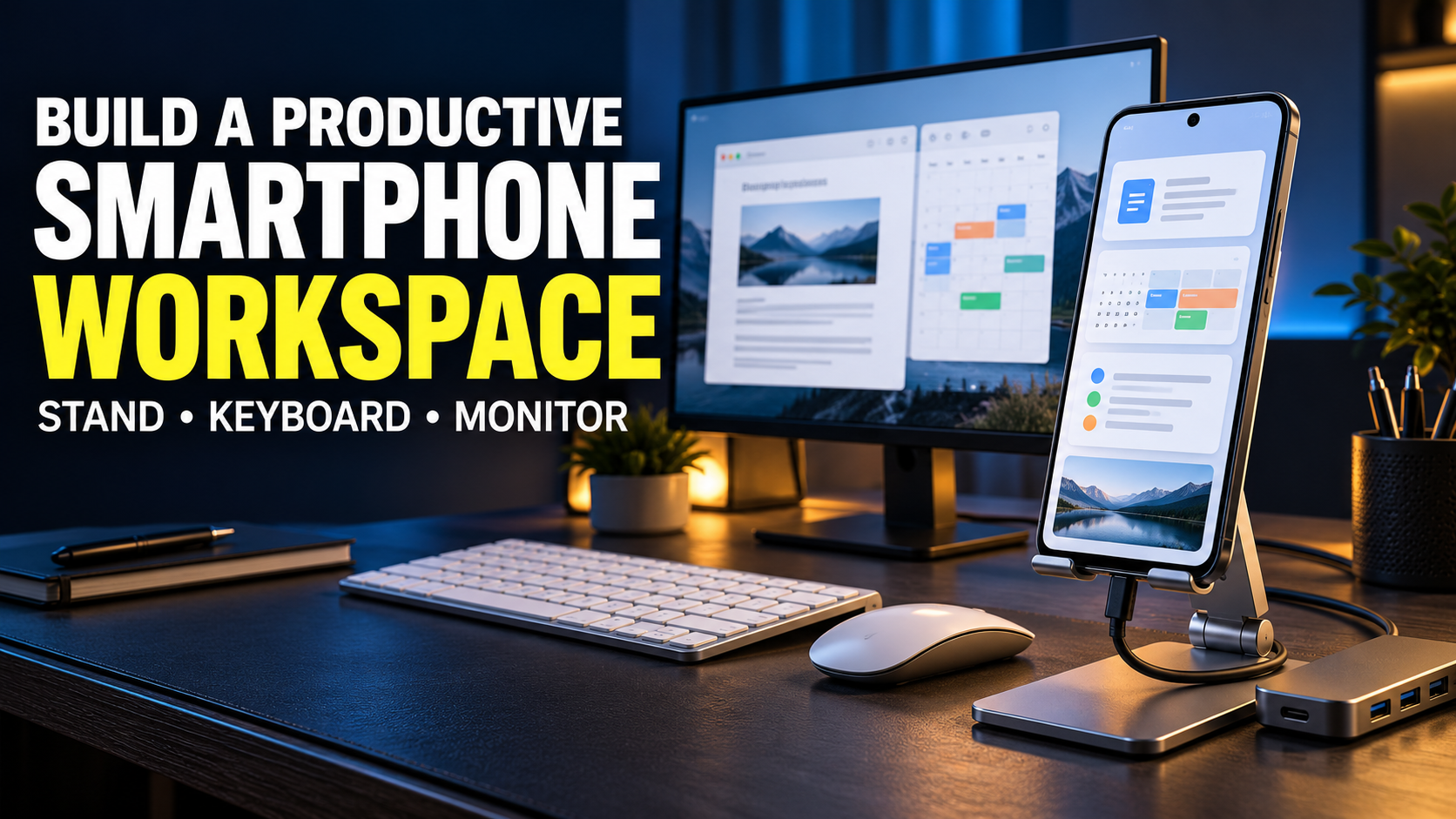
A useful smartphone workspace starts with a task you want to finish comfortably. Perhaps you need to answer customer messages, prepare short documents, organise photographs, or attend lessons from a small desk. The right combination of accessories can make those activities easier to manage. Building the setup gradually gives every gadget a clear purpose and helps you discover which parts of your workflow still need attention.
Define the Work Before Choosing Equipment
Choose a few ordinary tasks and describe how you complete them from start to finish. For a small business owner, that might mean receiving a product photograph, editing it, writing a description, and uploading the finished listing. For a student, it could involve opening course material, taking notes, and submitting an assignment.
Try those tasks on your current phone before shopping. Notice where progress becomes awkward: typing, reading, selecting files, or keeping a call visible while consulting notes. Match each problem to a possible improvement.
Check the exact features your apps provide, especially document formatting, export options, and website uploads. Establish which work belongs in the phone setup and which tasks you will continue completing on other equipment.
Give the Phone a Stable Comfortable Position
An adjustable stand creates a reliable place for the screen while leaving your hands available. Look for a firm base, an angle that stays in position, and a cradle that fits your phone with its usual case. Tap near the upper corners during a demonstration to check whether the stand rocks or slides.
Place the screen where you can read it comfortably from your normal sitting position. Adjust text size and viewing distance together rather than repeatedly leaning towards small writing. Check that a charging cable can reach the connector without pulling the phone sideways.
Keep the camera and microphone clear for calls. If you frequently switch between portrait messages and landscape video, examine how easily the stand changes orientation. A practical setup should be quick to arrange and equally easy to clear away.
Choose Input Tools That Match Your Apps
A compact Bluetooth keyboard is worth exploring when much of your work involves typing. Compare key spacing, the layout of punctuation marks, and the position of shortcuts you regularly use. A very small keyboard may save desk space while making familiar movements feel awkward, so type an actual paragraph before deciding.
Confirm compatibility with your phone and test the keyboard in your main apps. Try selecting text, copying a sentence, switching fields, and entering your preferred language. Check that the keyboard layout selected in settings matches the physical keys.
Treat a mouse as an optional addition. Verify pointer support in the operating system and try the exact operations you need. On compatible Samsung DeX setups, Samsung documents keyboard and mouse use for navigating apps and files. That provides one supported example; your own phone and software still require checking.
Understand What an External Screen Will Do
Decide whether a larger screen would improve a recurring task. Reading a presentation, reviewing photographs, and arranging multiple app windows are different needs. The connection must provide the experience your work requires.
A USB-C connector alone does not establish wired video support. Apple’s documentation identifies particular iPhone models that support external displays and explains that the output generally mirrors the phone, with exceptions for apps offering a separate screen experience. Mirroring reproduces the phone’s display; it does not automatically create a desktop interface.
On supported Samsung phones, a direct connection to a compatible monitor can provide the DeX desktop experience. Confirm the phone, monitor input, adapter, and software requirements before purchasing anything. Then open your actual work apps on the proposed display. Examine text size, navigation, window behaviour, and whether the desired features remain available.
Select a Hub Around Specific Connections
List what must connect at the same time. You may need a card reader for photographs, a keyboard connection, a monitor output, and a way to keep the phone powered. Choose a USB-C hub around that list, checking the documented purpose of every port.
Review power input, data connections, and video support separately. Ask whether the complete arrangement works simultaneously with your phone. An HDMI socket on a hub is useful only when the phone and the rest of the connection support the required display output.
External storage deserves particular attention. Apple’s iPhone guidance specifies supported drive formats and explains that some external hard drives require additional power; a powered USB hub is an option for compatible USB-C arrangements. Confirm your drive’s requirements and place the hub where attached cables will remain supported.
Make Calls Easy to Join and Understand
For calls, begin with the audio equipment you already own. Make a short test call from your normal seat and ask whether speech sounds clear. Check which microphone and speaker the meeting app has selected, especially when several accessories are connected.
Position the phone so the camera shows your face comfortably and leaves space for any notes you need to consult. Arrange light in front of you when possible, then inspect the preview for distracting reflections or an excessively bright background.
Keep the call controls easy to reach. Practise muting, changing audio output, and returning from another app before an important meeting. A dependable everyday call arrangement may serve you better than adding equipment whose benefit you have not yet established.
Organise Files for Online and Offline Work
Create a simple folder structure based on projects or clients. Within each project, give drafts, source material, and finished files clear names. Use dates or version numbers consistently so you can identify the correct document without opening several copies.
Choose a main location for active work and establish where a recoverable backup will be kept. Verify that an exported file opens correctly and that its contents are complete. Practise recovering a sample document before relying on the arrangement for important work.
Before travelling, prepare the documents and reference material you need locally. Confirm that your chosen apps can open and edit them without a connection. Reconnect afterwards and inspect how the app handles the changes. This small rehearsal reveals whether your intended workflow depends on services that will be unavailable during the journey.
Control Interruptions and Rehearse the Whole Workflow
Set up a focused working session using the notification controls available on your phone. Decide which calls or messages must remain visible and which alerts can wait. Keep the apps needed for the current task within easy reach, and remove unnecessary items from the immediate workspace.
Before buying the full collection of accessories, borrow or demonstrate the most uncertain parts. Complete one realistic assignment with everything connected: open the source material, create the work, export the result, and confirm that it reaches the intended destination. Include a call if meetings are part of your routine.
Pay attention to repeated friction, including unstable stands, uncomfortable typing, difficult file selection, and slow setup. Improve the biggest obstacle first. The workspace earns its place when you can sit down, start promptly, and finish useful work with confidence.